
Onboarding Guide
The Onboarding Guide is a checklist that lives beside the map. An administrator writes it: a handful of categories, each holding topics, each topic a short run of subtopics with a line or two of text and, usually, a link to read more. You work through it at your own pace, ticking subtopics off as you go, and the panel remembers where you got to. It is meant for your first days on the platform, which is why its title usually reads Guided tour, but nothing stops you coming back to it later.
The panel does not teach anything by itself. A subtopic points at a page elsewhere, and what the panel adds is the order, the ticks and the sense of how far along you are.
The panel
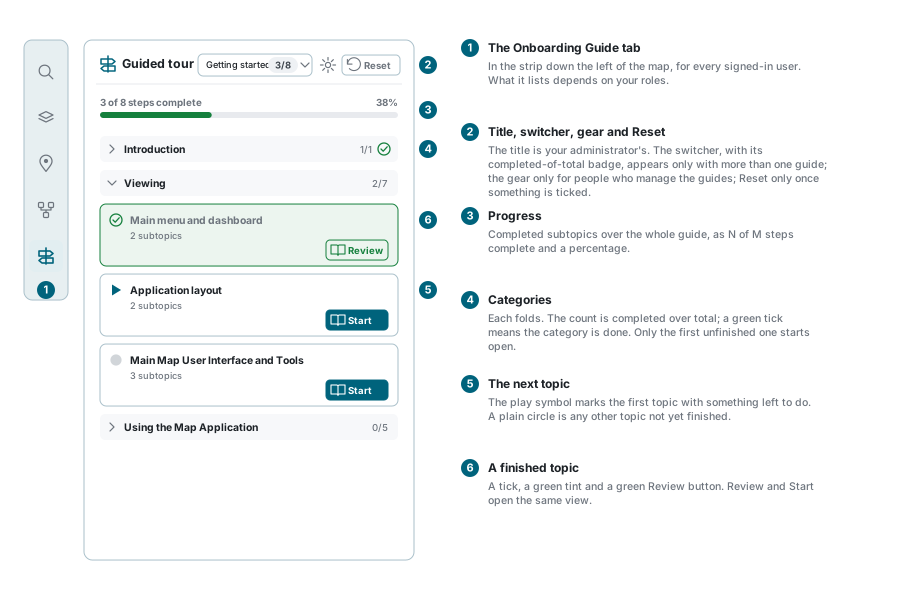
The Onboarding Guide tab is in the strip down the left of the map, and every signed-in user has it. What it shows depends on your roles: a guide is granted to roles, and the panel lists only the guides granted to a role you hold in the account you are working in. With none, it says so and asks you to speak to an administrator.
The panel reads that list when the map opens. If you were granted a guide a moment ago and still see the empty message, reload the page.
The title at the top is set by your administrator for the whole site, under Admin Settings > Onboarding Guides. It reads Guided tour until they change it.
The header holds up to three controls besides the title:
| Control | When it appears | What it does |
|---|---|---|
| Guide switcher | Only when more than one guide is available to you | Names the current guide, with a badge counting its completed subtopics over its total. Open it for the list of your guides, each with its own badge, and a Search guides box. Each guide keeps its own progress. |
| Gear | Only for people who manage the guides (under Roles: Modules > OnboardingAdmin > View) | Opens Admin Settings > Onboarding Guides, where the guides are written. Everyone else never sees it. |
| Reset | Only once you have ticked at least one subtopic in the current guide | Clears every tick in the current guide. There is no confirmation, and no undo. |
When it opens by itself
The panel may open by itself when the map loads. It does when at least one guide is available to you and either User is your only role in the account you are working in, or that account is on a trial (a sign-up trial, for example). It does so once for that user and account in a browser tab: reload the page and it stays shut; open the map in a new browser tab and it opens again. Everyone else can open the tab whenever they like; it simply does not open for them on its own.
Reading the list
Under the header is the progress bar: N of M steps complete across the whole guide, the same as a percentage beside it, and a green bar. Then the categories.
Each category is a fold. Its header carries the category name, a count of completed over total subtopics inside it, and a green tick once every one of them is done. Click the header to open or close it. When a guide first shows, only the first category that still has something to do is open; the rest are folded. Fold or unfold what you like and the panel keeps your choice for each guide until you reload the page. A category with nothing in it yet says No topics yet.
Inside a category are topic cards. Each shows a mark, the topic name, how many subtopics it holds, and a button:
| Mark | Meaning |
|---|---|
| A play symbol, in the brand colour | The next topic to do: the first one in the guide that has subtopics and something left to tick. |
| A plain circle | Not started, or partly done, but not next. A topic that reads No subtopics yet keeps this mark. |
| A tick in a circle, on a card tinted green | Every subtopic in it is complete. |
The button reads Start until the topic is complete and Review, in green, after. Both open the same thing.
Working through a topic
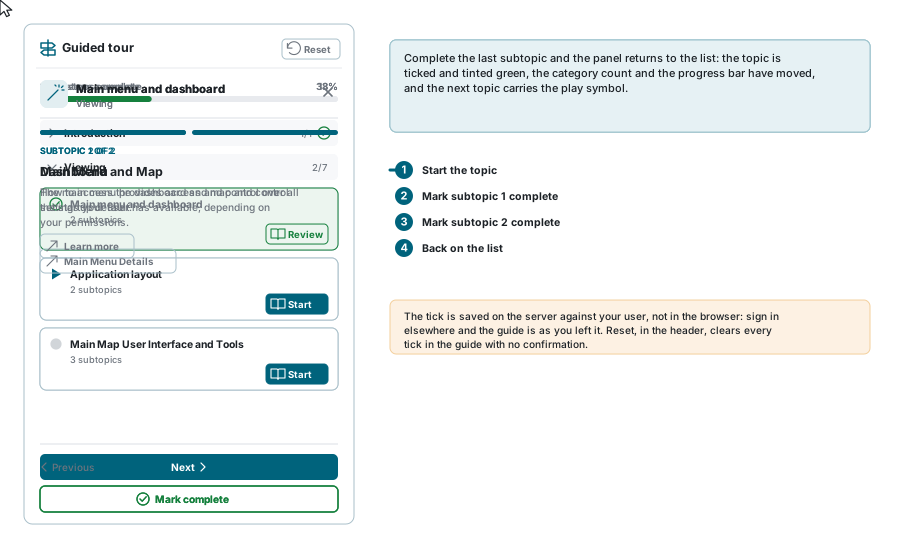
Press Start and the panel shows the topic on its own: its name and its category at the top, a close cross beside them, and under them a row of segments, one per subtopic. The segments show where you are, filled up to the subtopic in front of you; they do not show what you have ticked. It opens on the first subtopic you have not completed, so coming back to a topic picks up where you left off.
A subtopic is the label SUBTOPIC n OF m, a heading, some text, and usually a link. Line breaks the administrator typed are kept. The link carries the words the administrator gave it, or Learn more, and opens in a new browser tab, because it leads out of the application to a page that explains the thing the subtopic names. Read it there, come back, and press Mark complete.
| Button | What it does |
|---|---|
| Previous | Back one subtopic, without ticking anything. Not there on the first. |
| Next | On one subtopic, without ticking anything. Not there on the last. |
| Mark complete | Saves the tick at once (the button spins while it does) and moves on to the next subtopic by itself. On the last subtopic it returns you to the list instead, and if that finished the category, folds the category away. |
| Mark incomplete | Shown instead of Mark complete on a subtopic you have already ticked. Removes the tick and stays where it is. |
| The close cross | Back to the list at any point, where the counts, the ticks and the progress bar have caught up with what you did. |
The tick is your progress, not the browser's. It is saved on the server against your user, so it follows you to another computer and is still there next week.
A topic with nothing in it
An administrator can add a topic before writing its subtopics. Its card says No subtopics yet, and Start opens a single placeholder saying Content for this topic has not been defined yet., with nothing to complete. It counts for nothing in the progress bar either.
Archived content
When your administrator archives a topic or a subtopic it disappears from the panel, and the counts and the progress bar no longer include it. Your tick on it is kept, and counts again if it is restored.
If something looks wrong
| What you see | What it means |
|---|---|
| No onboarding guides are available for your account. | No guide has been granted to a role you hold in this account. If one was granted just now, reload the page; otherwise ask your administrator. |
| This onboarding guide has no active steps yet. | The guide exists but has no categories in it yet. |
| No topics yet. inside a category | The category exists but nothing has been written into it. |
| A topic or subtopic you had ticked has disappeared | Your administrator archived it. The numbers moved with it; your tick is kept in case it is restored. |
| A red box under the header with a message | Something did not save or load. The message is the server's reason, or a technical one. Close it with its cross. What happened depends on what you did: a guide you switched to did not load and the panel stayed on the one before; a tick did not save and was put back; Reset stopped part-way. |
| Ticks came back after a Reset that showed an error | The panel puts the ticks back on screen when Reset fails, but the ones cleared before the failure stay cleared on the server. Reload the page to see where you really are, and press Reset again if you meant it. |
| You were taken to the Dashboard with You do not have permission to access that resource when you switched guides | That guide was archived, or taken away from your roles, after the panel loaded. Reload the map. |
| The panel opened by itself | User is your only role in this account, or the account is on a trial. It does this once per browser tab. See When it opens by itself. |
| No gear in the header | You do not manage the guides. Nothing is missing. |
| The link on a subtopic does nothing, or opens a blank tab | The browser blocked a pop-up, or the page the administrator linked to has moved. Allow pop-ups for this site, and tell your administrator which subtopic it was. |
See also
- Understanding the Interface - the panels round the map, and the strip the tab lives in
- Dashboard - the greeting card names your roles, which decide the guides you see