External Links
Your organisation can link the map to its other systems: a billing system, a customer system, a work-order system. The links work both ways:
- Out of the map. Select features and press a button such as Open in billing system. The other system opens in a new tab, at those records.
- Into the map. A link in the other system opens the map, selects the features it names and zooms to them.
An administrator sets up each link, for one layer. You cannot make your own.
Who sees the buttons
The buttons need the permission Applications_Urlintegration_View. Without it there is no External Links tab, and there are no link buttons in the popup or the record dialog. Ask your administrator if you need it.
Even with the permission, a layer only has buttons when an administrator has linked it to another system. Links are set up per account, so the buttons can change when you switch account.
Following a link into the map needs no permission of its own. You must belong to the account the link is for, be allowed to open the map, and be allowed to see the layer. A link never shows you anything you could not open by hand.
The External Links tab
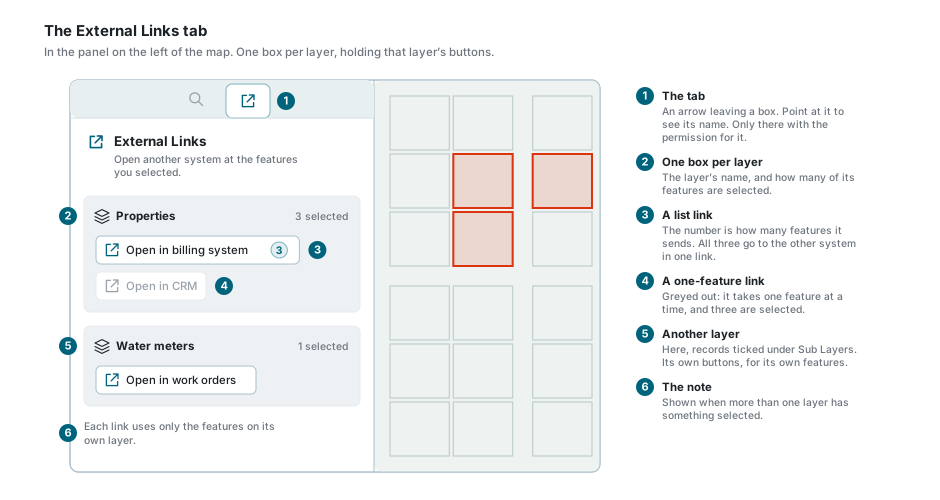
The tab is in the panel down the left of the map, beside Search. Like the other tabs it is an icon, here an arrow leaving a box: point at it to see its name. The panel's ? button opens this page.
At the top it says "Open another system at the features you selected." Below that:
- With nothing selected it says "Select features on the map to see the links set up for them."
- With features selected there is one box per layer. Each box shows the layer's name, how many of its features are selected ("3 selected"), and that layer's buttons.
- A layer that has no links says "No links are set up for this layer."
- With more than one layer listed, a note under the boxes says "Each link uses only the features on its own layer."
The tab follows the selection as it changes.
What the tab lists
The tab lists what is selected on the active layer, and anything you selected under Sub Layers in the Data Table, each under its own layer.
The popup can also show the feature you clicked on other layers. Those are not listed in the tab. Use the buttons in the popup for them (see the popup), or make that layer the active layer first. See the active layer.
Opening another system
- Select the features on the map. Any way of selecting works: a click, Shift + Click, a radial selection. See Feature Selection.
- Open the External Links tab, or look at the popup.
- Press the button.
The other system opens in a new tab, at the records you selected. What it shows there is up to that system. If it asks you to sign in, that is its own sign-in, not this one.
Things worth knowing:
- A number on a button is how many features it will send. You see it on a button that sends a list, when more than one feature is selected. All of them go to the other system in one link.
- Features with no value in the field the link uses are left out, and the number does not count them.
- Nothing comes back. The map only opens the link. It cannot tell whether the other system found the records.
- Pop-ups. Point at a button to see its name and "Opens in a new tab. If nothing opens, allow pop-ups for this site and click again." A browser that blocks pop-ups can block the new tab.
- A short wait. Some links first look up the other system's own number for each feature. The button shows a spinner while it does. If there is no such number, a message says "The other system's key for these features was not found."
When a button is greyed out
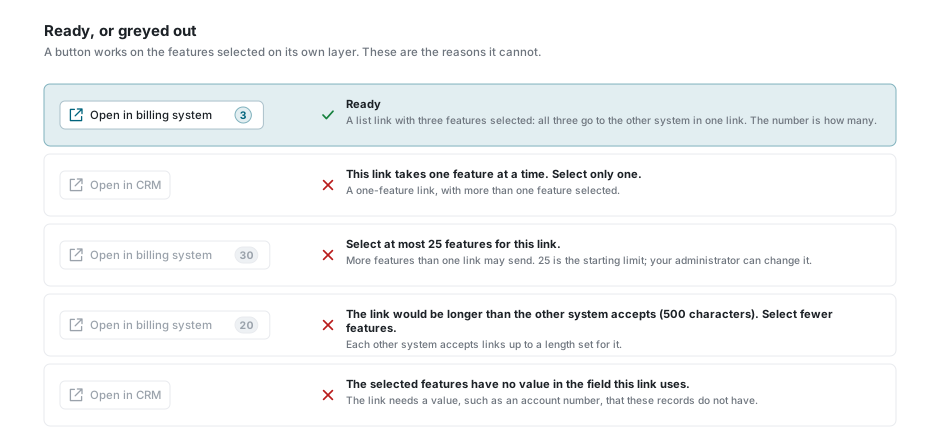
A greyed-out button cannot be used for what you have selected. Point at it (on a phone, touch and hold it) to see why. These are the reasons, in the app's words:
| Reason | What it means |
|---|---|
| "This link takes one feature at a time. Select only one." | The link opens one record in the other system, and more than one feature of that layer is selected. |
| "Select at most 25 features for this link." | A link that sends a list may send at most 25 features. That is the starting number; your administrator can change it for the whole site, and the message then shows the new number. |
| "The link would be longer than the other system accepts (2000 characters). Select fewer features." | Each other system accepts links only up to a certain length, which your administrator sets for it (2 000 characters unless they changed it). Many features, or long values, make the link too long. |
| "The selected features have no value in the field this link uses." | The link needs a value from the features, such as an account number, and none of the selected features has one. A link built only from other details of the feature, or its position, needs no such value. |
The message about the length can also appear after you press a button that looks up the other system's numbers first, because only then is the whole link known.
In the popup and the record dialog
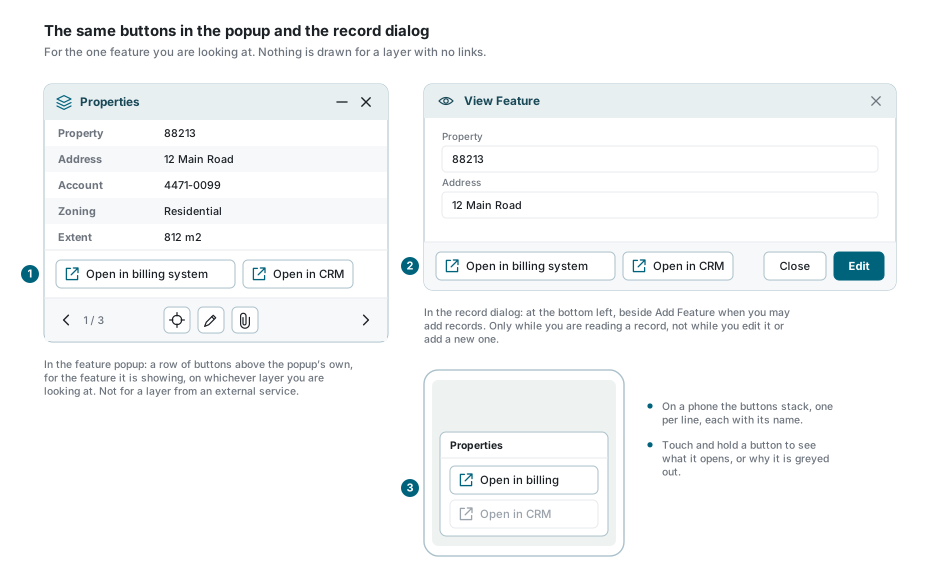
The same buttons appear in two more places, so you do not have to open the tab:
- The feature popup. A row of buttons above the popup's own buttons, for the feature the popup is showing. It works for whichever layer the popup is showing, whether it is the active layer or not. Step to another feature with the arrows and the buttons follow it. There are no link buttons for a layer from an external service.
- The record dialog, while you are reading a record (View Feature). The buttons sit at the bottom left, beside Add Feature when you may add records. They are not there while you edit a record or add a new one.
In both places a button sends only the one feature you are looking at. When a layer has no links, nothing is shown at all.
On a phone
On a phone the buttons stack one under the other, each with its name, so you can tell them apart. Touch and hold a button to see what it opens, or why it is greyed out.
Opening the map from another system
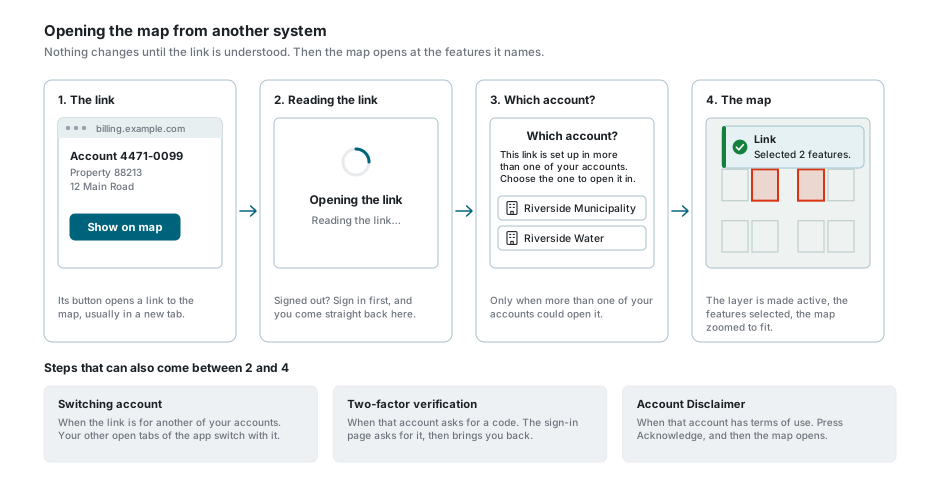
The other system gives you a link, usually a button. It goes to your map site's /url-link page. You do not need to read the link: the other system builds it.
What happens, step by step
- You press the link in the other system. It usually opens a new tab.
- If you are signed out, the sign-in page comes first. Sign in as usual, with Google or Microsoft too, and you are brought straight back to the link. This works as long as you stay in the same browser tab and finish within 15 minutes.
- The link is read. A card says Opening the link, with "Reading the link…" under it. Your account, workspace and map do not change until the link has been understood.
- Which account? This only comes up when the link names no account, the account you are in has no such link, and more than one of your other accounts has. The card says "This link is set up in more than one of your accounts. Choose the one to open it in." Press one.
- Switching account. When the link is for another of your accounts, the card says "Switching to the account the link is for…". It is the same switch as choosing another account behind your avatar, so your other open tabs of the app move to that account too.
- If that account asks for two-factor verification, the sign-in page asks for the code, then brings you back to the link.
- If that account has a disclaimer, Account Disclaimer opens, unless you chose Don't show this again before. Press Acknowledge and the link goes on.
- The map opens. The card says "Opening the map…". The link is taken out of the address bar, so refreshing the page or pressing Back does not run it again.
- On the map, in this order:
- The workspace. If the link names a workspace (an administrator can fix one for it), that one opens, and never another. Otherwise you stay in the workspace you have open. If the layer is not in it, the layer is added for this visit; save the workspace to keep it, as with any layer you add.
- The layer becomes the active layer.
- The features are all selected, and the map zooms to fit them. A single feature is shown at street level.
- A message titled Link says what was found. See The message on the map.
When the link opened a different workspace, the Workspaces & Layers tab opens on the right so you can see where you are.
Some links carry a position instead of records. The map moves there and nothing is selected.
Unsaved work
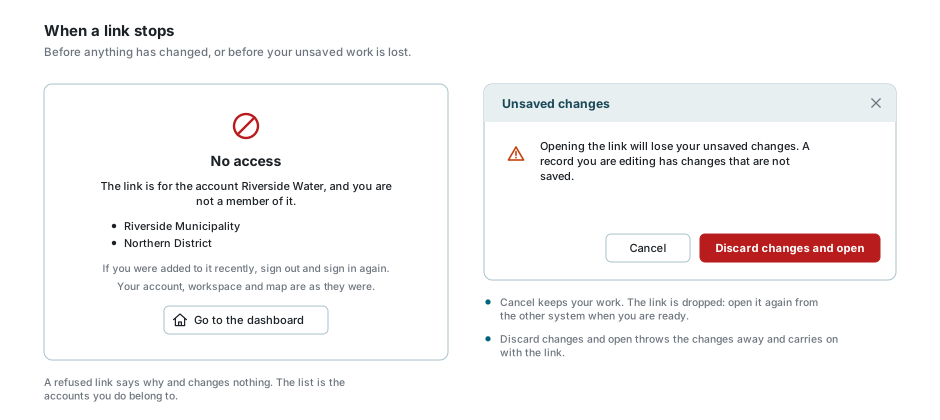
Before it changes the map, the link checks for work you could lose:
- Drawing or editing shapes on the map. A link that opens records stops with "Finish or cancel your drawing and editing, then open the link again." It cannot safely throw that work away for you.
- A record with unsaved changes in the record dialog, or your own workspace with unsaved changes when the link opens a different workspace. The Unsaved changes dialog asks first. It says "Opening the link will lose your unsaved changes.", followed by "A record you are editing has changes that are not saved." or "Your workspace has changes that are not saved."
- Cancel keeps your work and drops the link. Open the link again from the other system when you are ready.
- Discard changes and open throws the changes away and follows the link.
Changes to Default or to a universal workspace do not count. Those workspaces cannot be saved anyway.
The message on the map
The message is titled Link. It is green when everything worked, and orange or red when something needs your attention. When the link worked, one message can join several of the first eight lines together:
| Message | What it means |
|---|---|
| "Selected 3 features." | How many features are now selected. One record in the other system can match more than one feature. |
| "Not found: 88231, 88240." | These records were not found on the layer. The first ten are named, then how many more. |
| "More features matched than one link selects; only the first ones are selected." | A link selects at most 500 features, unless your administrator changed that number for the site. |
| "The layer was added to your workspace for now." | The layer was not in your workspace. Save the workspace to keep it. |
| "Account: Riverside Water." | The link moved you to this account. |
| "Other tabs of this site you have open move to that account too." | Comes with the line above. Every tab of the app you have open is now in that account. |
| "Workspace: Asset inspections." | The link opened this workspace. After a link with a position, it names the workspace you are in. |
| "The map is at the link's position." | A link with a position: the map has moved there. |
| "No features found for 88213, 88219." | None of the records were found, so nothing new is selected. |
| "Finish or cancel your drawing and editing, then open the link again." | See Unsaved work. |
| "The workspace this link opens in is not available to you. The map is left as it was." | The link's workspace is not one you can open. |
| "The layer this link uses is not available to you in this workspace. Nothing was changed." | The layer is not in the link's workspace, or you may not see it. When the link had already moved you to another account or workspace, the message leaves out "Nothing was changed." |
| "You may not open the map this link opens in, in this account." | The link opens a map application that your account does not give you. |
| "The map did not open in time, so the link could not be followed. Open the link again." | The map, or the switch to the link's workspace, took too long. |
| "The link could not be opened. Try again in a moment." | Something went wrong on the way. Try again. |
A record is only found when its value matches exactly, and only when you are allowed to see it.
Picking for another system
Some systems open the map to ask you to pick something for them: a property, a meter, or a place. A bar at the top of the map then says what to pick:
- "Pick one feature on Properties for Send to billing." Click the feature on the map to select it, as you always do. The bar shows what you picked. Select only one; with more, it asks you to select one.
- "Click the map at the place for Send the spot." Click the map where it is. Click again to change it.
Press Send to give the pick to the other system. If that system opened the map in a window of its own, the window says "Sent to … You can close this window." and closes; otherwise this tab goes back to the other system. Cancel closes the bar and sends nothing.
When a link cannot be opened
When a link cannot be followed, the card says why instead of opening the map. It ends with "Your account, workspace and map are as they were." and a Go to the dashboard button. When the link had already moved you to another account, it says so instead: "You are now in the account Riverside Water. Nothing else was changed." A red sign means the problem is your access to the account. An orange one means the problem is the link, or what it points to.
| What the card says | What to do |
|---|---|
| This link can't be used: "The link is incomplete or has a mistake in it. Ask whoever sent it, or the system it came from, to check it." | Ask the people who look after the other system. |
| This link can't be used: "The link names more records than one link may carry (at most 25)." | A link may carry at most 25 records, unless your administrator changed that number. The other system must send fewer. |
| This link can't be used: "The link's latitude and longitude look swapped. Ask whoever made the link to check them." | A link with a position, its two numbers the wrong way round. |
| This link can't be used: "The link gives a position in a coordinate system this site does not know (EPSG 99999)." | A link with a position, in a coordinate system the site cannot convert. |
| No access: "The link is for the account Riverside Water, and you are not a member of it." | Under it, the card lists the accounts you do belong to and says "If you were added to it recently, sign out and sign in again." Otherwise ask your administrator. |
| Account switched off: "The account Riverside Water is switched off, so the link can't be opened in it." | Ask your administrator. |
| Sign-in not allowed: "Your roles in the account Riverside Water do not allow signing in to it." | Ask your administrator. |
| Link not set up: "The account Riverside Water has no link set up for this system." When the link names no account: "None of your accounts has a link set up for this system." | Ask your administrator to set the link up. |
| Workspace not available: "The workspace this link opens in is not available to you. The map is left as it was." | Ask your administrator for access to the workspace. |
| Map not available: "You may not open the map this link opens in, in this account." | Ask your administrator. If the link had already moved you to another account, you stay in that account. |
| Picking not set up: "This link asks you to pick on the map, but no way back to that system is set up for the account Riverside Water." | Ask your administrator: the link needs a way back to that system. |
| Something went wrong: "The link could not be opened. Try again in a moment." | Open the link again. |
If something looks wrong
| What you see | What it means |
|---|---|
| There is no External Links tab | You do not have the permission for it. See Who sees the buttons. |
| The tab says "Select features on the map to see the links set up for them." | Nothing is selected. Select features on the map first. |
| "No links are set up for this layer." | Nobody has linked this layer to another system in the account you are signed in to. |
| A feature you clicked is not in the tab | The tab lists the active layer's selection. Use the popup's buttons for a feature of another layer, or make that layer active. |
| A button is greyed out | See When a button is greyed out. |
| You pressed a button and nothing opened | The browser blocked the new tab as a pop-up. Allow pop-ups for this site and press the button again. |
| The other system opened, but without the record | The map only sends the link and cannot tell whether the other system found the record. Ask the people who look after that system. |
| A link your administrator has just set up has no button | A layer's buttons are fetched when you select its features, and kept for a minute. Select the features again after a minute, or reload the page. |
| A link from the other system opened the sign-in page | You were signed out. Sign in and you come back to the link. |
| After signing in you landed on the dashboard instead | The link was lost on the way, for example because you signed in in another tab. Open the link again. |
| A record you know exists is reported as not found | The value must match exactly. It may also be a record you may not see, such as one outside the area your account is limited to. |
| The link moved you to another account | It is for that account. Your other open tabs moved with it. Switch back behind your avatar. |
| Refreshing the page does not repeat the link | That is deliberate: a link runs once. Open it again from the other system. |
| You pressed Cancel under Unsaved changes and nothing happened | Cancel drops the link. Save or discard your work, then open the link again. |
See also
- Feature Selection & Popup - selecting the features a button sends
- Data Table - the record dialog
- Workspaces - the workspace a link opens in, and saving an added layer
- Layer Control - the active layer
- Sign In - two-factor verification and the disclaimer
- Profile Settings - switching accounts